How to Dress Up Your Website for Halloween 2024
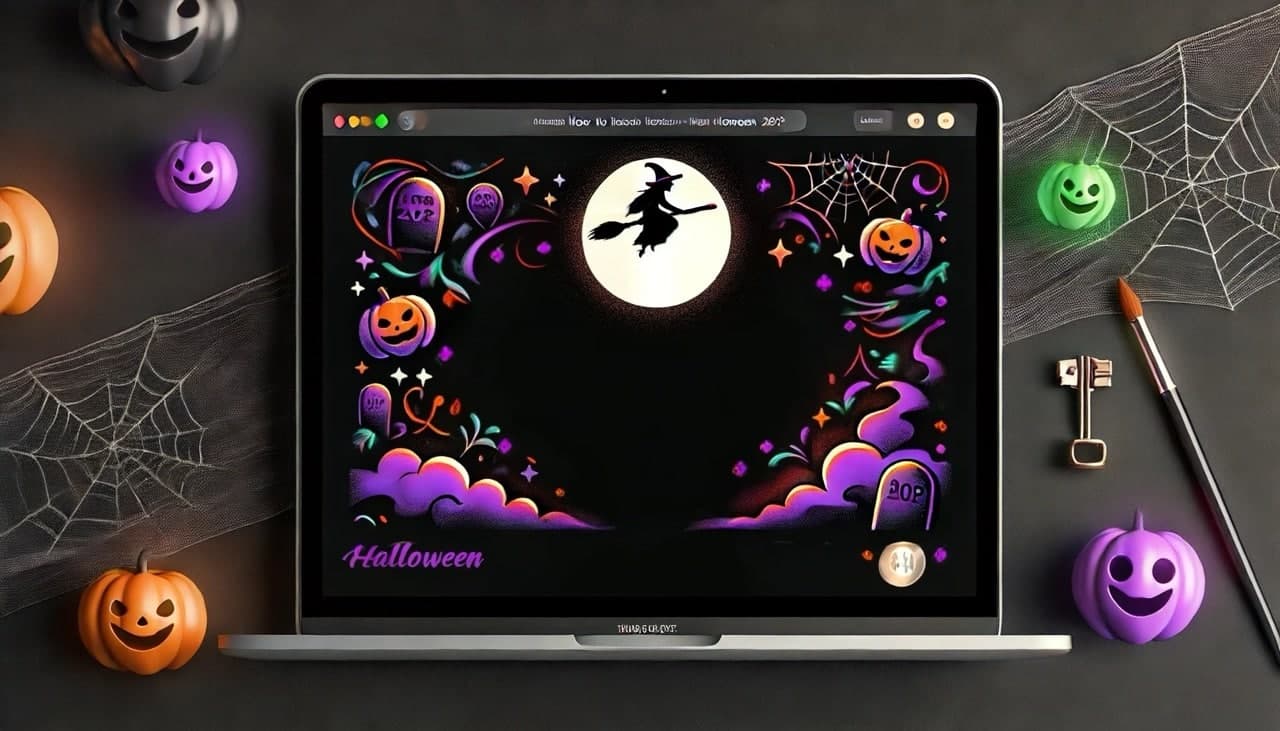
Halloween 2024 is today! There’s still time to add a touch of spooky magic to your website and engage your visitors with some eerie effects. A well-decorated website not only sets the mood but also creates a memorable experience for your audience. In this post, we’ll explore three fun and easy ways to give your site a Halloween makeover with flying witches, creepy cobwebs, and a snowfall effect (perfect for the holidays just around the corner).
1. Add a Flying Witch Animation – Halloween 2024
Nothing screams Halloween more than a witch on a broomstick flying across the screen. Below, we’ll walk you through creating an animated flying witch that bounces off the edges of your website, flips direction upon hitting the screen sides, and fades away after 10 seconds.
<style>
  .flying-witch {
    position: fixed;
    z-index: 9999;
    width: 150px;
    pointer-events: none; /* Allows clicks to pass through */
    transition: transform 0.3s, opacity 2s; /* Smooth transition for flipping and fading */
  }
</style>

<script>
  document.addEventListener("DOMContentLoaded", function() {
    // Set the number of witches
    const numberOfWitches = 5; // Change this number to create more or fewer witches

    // Array to store witch elements and their movement directions
    const witches = [];
    const directions = [];

    // Function to create a witch element
    function createWitch(index) {
      const witch = document.createElement('img');
      witch.src = 'https://media.bsharptech.com.au/2024/10/Witch.png'; // Replace with your witch image URL
      witch.classList.add('flying-witch');
      witch.style.top = `${Math.random() * 80 + 10}%`; // Random initial top position (10% to 90%)
      witch.style.left = `${Math.random() * 80 + 10}%`; // Random initial left position (10% to 90%)
      document.body.appendChild(witch);

      // Set random initial directions for each witch
      const direction = {
        x: (Math.random() * 4) - 2, // Random speed between -2 and 2
        y: (Math.random() * 4) - 2  // Random speed between -2 and 2
      };

      // Store witch and its direction
      witches.push(witch);
      directions.push(direction);

      // Make the witch fade away after 10 seconds
      setTimeout(() => {
        witch.style.opacity = '0';
        setTimeout(() => {
          witch.remove(); // Remove the element from the DOM after the fade-out transition
        }, 2000); // Match the fade-out transition duration
      }, 10000); // Start fading after 10 seconds
    }

    // Create the desired number of witches
    for (let i = 0; i < numberOfWitches; i++) {
      createWitch(i);
    }

    // Function to update each witch's position and flip it if needed
    function moveWitch(witch, direction) {
      const witchRect = witch.getBoundingClientRect();
      const screenWidth = window.innerWidth;
      const screenHeight = window.innerHeight;

      // Calculate new position
      let newLeft = witchRect.left + direction.x;
      let newTop = witchRect.top + direction.y;

      // Check for boundary collision and reverse direction if necessary
      if (newLeft <= 0 || newLeft + witchRect.width >= screenWidth) {
        direction.x *= -1;
        newLeft = witchRect.left + direction.x;
        // Flip the witch image horizontally
        witch.style.transform = `scaleX(${direction.x > 0 ? 1 : -1})`;
      }

      if (newTop <= 0 || newTop + witchRect.height >= screenHeight) {
        direction.y *= -1;
        newTop = witchRect.top + direction.y;
      }

      // Set new position
      witch.style.left = `${newLeft}px`;
      witch.style.top = `${newTop}px`;
    }

    // Function to animate all witches
    function animateWitches() {
      witches.forEach((witch, index) => {
        moveWitch(witch, directions[index]);
      });
      requestAnimationFrame(animateWitches);
    }

    // Start the animation
    animateWitches();
  });
</script>
Now jump down to the bottom of this article to learn how to put these scripts on your website.
2. Add Creepy Cobwebs to Your Website – Halloween 2024
Cobwebs in the corners can add a subtle but eerie Halloween touch to your site. Here’s a simple way to add them using a few images and a bit of code.
<style>
  .cobweb {
    position: absolute;
    pointer-events: none; /* Allows clicks to pass through */
    z-index: 9999;
  }
  .cobweb.top-left {
    top: 0;
    left: 0;
    width: 300px; /* Double the size */
  }
  .cobweb.top-right {
    top: 0;
    right: 0;
    width: 300px; /* Double the size */
  }
  .cobweb.bottom-left {
    bottom: 0;
    left: 0;
    width: 300px; /* Double the size */
  }
  .cobweb.bottom-right {
    bottom: 0;
    right: 0;
    width: 300px; /* Double the size */
  }
</style>

<script>
  document.addEventListener("DOMContentLoaded", function() {
    // Array of cobweb positions and image URLs
    const cobwebPositions = [
      { class: 'top-left', src: 'https://media.bsharptech.com.au/2024/10/Cobs-top-left.png' },
      { class: 'top-right', src: 'https://media.bsharptech.com.au/2024/10/Cobs-Top-right.png' },
      { class: 'bottom-left', src: 'https://media.bsharptech.com.au/2024/10/Cobs-Bottom-left.png' },
      { class: 'bottom-right', src: 'https://media.bsharptech.com.au/2024/10/Cobs-Bottom-right.png' }
    ];

    // Function to create and append cobweb images
    cobwebPositions.forEach(cobweb => {
      const cobwebImg = document.createElement('img');
      cobwebImg.src = cobweb.src;
      cobwebImg.classList.add('cobweb', cobweb.class);
      document.body.appendChild(cobwebImg);
    });
  });
</script>
Now, jump down to the bottom of this article to learn how to put these scripts on your website.
3. Add a Snowfall Effect to Your Website – Halloween 2024
While Halloween is today, the holiday season is right around the corner! Adding a snow effect to your website can create a magical and festive atmosphere. Here’s how to add a snowfall effect:
<style>
  .snowflake {
    position: fixed;
    top: -10px; /* Start just above the screen */
    z-index: 9999;
    pointer-events: none; /* Allows clicks to pass through */
    font-size: 1em; /* Size of the snowflake */
    color: white; /* Colour of the snowflake */
    opacity: 0.8;
    animation: fall linear infinite;
  }

  @keyframes fall {
    0% {
      transform: translateY(0) rotate(0deg);
    }
    100% {
      transform: translateY(100vh) rotate(360deg);
    }
  }
</style>

<script>
  document.addEventListener("DOMContentLoaded", function() {
    const numberOfSnowflakes = 50; // Change this number to create more or fewer snowflakes
    const snowflakeCharacters = ['❅', '❆', '✻', '❄']; // Different snowflake shapes

    // Function to create and animate snowflakes
    function createSnowflake() {
      const snowflake = document.createElement('div');
      snowflake.classList.add('snowflake');
      snowflake.innerHTML = snowflakeCharacters[Math.floor(Math.random() * snowflakeCharacters.length)];
      snowflake.style.left = `${Math.random() * 100}vw`; // Random horizontal start position
      snowflake.style.animationDuration = `${Math.random() * 5 + 5}s`; // Random fall duration
      snowflake.style.fontSize = `${Math.random() * 10 + 10}px`; // Random size
      snowflake.style.opacity = Math.random(); // Random opacity
      document.body.appendChild(snowflake);

      // Remove snowflake when it reaches the bottom of the screen
      setTimeout(() => {
        snowflake.remove();
      }, parseInt(snowflake.style.animationDuration) * 1000);
    }

    // Create multiple snowflakes
    setInterval(createSnowflake, 200); // Generate snowflakes every 200ms

    // Create initial batch of snowflakes
    for (let i = 0; i < numberOfSnowflakes; i++) {
      createSnowflake();
    }
  });
</script>
Now jump down to the next section of this article to learn how to put these scripts on your website.
How to Add These Code Snippets to Your WordPress Website Using WPCode
You can add these code snippets to your WordPress website using a plugin called WPCode. If you don’t use WordPress then you will need to get your website developer to add the code manually to your header on your website. Here’s a step-by-step guide for WordPress:
Step 1: Install and Activate WPCode Plugin
- In your WordPress admin dashboard, go to Plugins > Add New.
- Search for “WPCode” and install the plugin by WPCode.
- After installation, click on Activate.
Step 2: Create a New Code Snippet
- 1. Go to Code Snippets > Add New.
- 2. Choose the option to Add Your Custom Code.
Step 3: Add the Code
1. For each snippet:
- Enter a title like “Halloween Flying Witches”, “Creepy Cobwebs”, or “Snowfall Effect”.
- Copy the combined CSS and JavaScript block from the corresponding section above.
- Paste it into the Code field.
- Choose the Code Type as HTML.
Step 4: Configure the Snippet
1. Choose where the snippet should be executed:
- Run Everywhere if you want the effect site-wide.
- Alternatively, choose Specific Pages if you want the effect on particular pages only.
2. Toggle the Active switch to ON.
Step 5: Save and Activate
1. Click Save and Activate.
2. Visit your website to see the spooky and festive effects in action!
Today’s the day! Halloween is here, and there’s still time to give your website a fun and eerie transformation with these effects. From flying witches to creepy cobwebs and a snowfall effect for the upcoming holiday season, your website is sure to leave an impression on your visitors.
Feel free to tweak the number of effects, their size, and the frequency to get just the right look. You can also swap out the images for whatever image your like. Whether you’re preparing for Halloween, Christmas, or any special occasion, these effects will make your site stand out and leave a lasting impression. Don’t forgot to remove or turn off at the end of the season.
Happy Halloween and happy coding! ????❄️✨